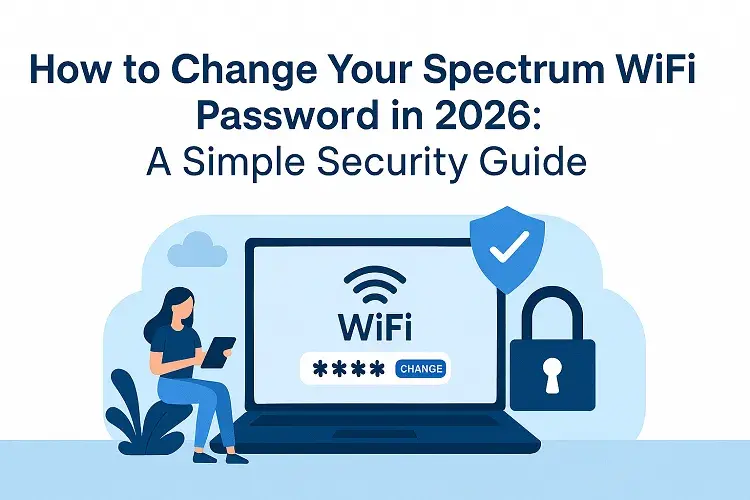
In 2026, keeping your home WiFi secure is more important than ever. With the rise of smart homes packed with IoT devices, WiFi 6, and now WiFi 7 routers from Spectrum’s Advanced WiFi lineup, and stronger encryption standards like WPA3, regularly updating your WiFi password helps protect against unauthorized access, data breaches, and bandwidth theft. A fresh, strong password ensures your network stays private and your connected devices—from security cameras to gaming consoles—run smoothly and safely.
Spectrum makes changing your WiFi password straightforward through two main methods: the user-friendly My Spectrum App (ideal for most customers with modern Advanced WiFi routers supporting WiFi 6/7) or the traditional router web portal for manual access.
Method 1: Change Your Spectrum WiFi Password Using the My Spectrum App (Recommended)
The My Spectrum App is the easiest and most modern way, especially if you have Spectrum’s Advanced WiFi equipment. It supports seamless management of WiFi 6 and WiFi 7 features like enhanced device prioritization and whole-home coverage.
- Download and open the app — If you don’t have it, get the free My Spectrum App from the App Store (iOS) or Google Play (Android).
- Sign in — Use your Spectrum username and password. (If you don’t have an account, create one quickly within the app.)
- Go to Services — Tap the Services tab at the bottom of the screen.
- Select Your Network — Under “Your Spectrum Network,” tap on your WiFi network (it may show your current network name or router).
- Edit Network Details — Choose the option to update or edit your network name (SSID) and/or password. Enter your new password in the provided field.
- Save Changes — Tap Save or Update. Confirm if prompted.
- Reconnect Devices — Your WiFi network will update immediately. You’ll need to enter the new password on all connected devices (phones, laptops, smart TVs, etc.).
Note: Changing your password will temporarily disconnect all devices until you update them—do this at a convenient time.
Method 2: Change Your Spectrum WiFi Password Using the Router Web Portal
For hands-on control or if the app isn’t available, access your router’s admin page directly. This works with most Spectrum-provided routers.
- Connect to your network — Use a computer or device connected to your Spectrum WiFi (via WiFi or Ethernet cable for stability).
- Find your router’s IP address — Common Spectrum router addresses are http://192.168.0.1 or http://192.168.1.1. (Check the sticker on your router for the exact one, or search your device’s network settings for the “Default Gateway.”)
- Open a web browser — Enter the IP address (e.g., http://192.168.0.1) into the address bar and press Enter.
- Log in to the admin panel — Use the default credentials if unchanged (often username: admin and password: admin or password—check your router sticker or documentation). If you’ve set custom admin credentials before, use those.
- Navigate to WiFi settings — Look for sections like Wireless, WiFi Settings, Basic Wireless, or Security.
- Update the password — Find the field for Password, Passphrase, Pre-Shared Key, or WPA Key. Enter your new password (ensure it meets WPA3 requirements for best security).
- Save and apply — Click Save, Apply, or Submit. Your router may restart briefly.
- Reconnect devices — Update the new password on all your connected devices.
Tip: If you encounter issues logging in, reset the router to factory defaults (hold the reset button for 10-15 seconds), but note this will erase custom settings.
Pro Tips for Creating an “Un-Hackable” Password in 2026
- Use at least 12-16 characters with a mix of uppercase/lowercase letters, numbers, and symbols.
- Avoid common words, birthdays, or “password123″—opt for a passphrase like “BlueSky2026!CoffeeRun#FastNet”.
- Enable WPA3 security if your Advanced WiFi router supports it (most do in 2026).
- Consider changing your network name (SSID) too—avoid broadcasting personal info like your address or name.
- After updating, use the app to monitor connected devices and pause any unknowns.
Once you’ve secured your current setup with a strong, updated password, take a moment to think about your overall home internet performance. If you’re noticing slowdowns during peak hours, lag in 4K streaming/gaming, or spotty coverage in larger homes—especially with more WiFi 7-capable devices joining the network—it might be time to level up.
Get the Most Out of Your Connection. If your current speeds aren’t keeping up with your household’s demands in 2026, explore the latest Spectrum Internet plans to unlock faster multi-gig options, enhanced Advanced WiFi with WiFi 7 technology, and better whole-home coverage. CompareInternetHub makes it simple by offering the best localized deals tailored to your area, comparing current promotions, and guiding you through an easy upgrade process—including the newest Spectrum equipment for optimal performance. Visit CompareInternetHub today to see if a quick plan refresh could transform your home connectivity.
More Spectrum Troubleshooting Guides
Fix Your Spectrum Connection: Experiencing connectivity issues? Learn how to Reset Your Spectrum Router in 3 easy steps, or check our guide to see if Spectrum Internet is currently down in your area.
Manage Your Equipment: Keep your network secure by learning how to Change Your Spectrum WiFi Password, and get your entertainment center fully synced with our guide on how to Program a Spectrum Remote.
Frequently Asked Questions (FAQ)
How often should I change my Spectrum Wi-Fi password?
Cybersecurity experts generally recommend changing your Wi-Fi password every 3 to 6 months. You should also change it immediately if you suspect someone is using your network without permission, or after giving the password to temporary house guests or contractors.
Do I need to reconnect all my devices after changing my Wi-Fi password?
Yes. Once you change your Spectrum Wi-Fi password, the network will temporarily disconnect. Every single wireless device in your home—including smartphones, smart TVs, laptops, and smart home appliances—will need to be manually reconnected using the brand-new password you just created.
What happens if I forget my new Spectrum Wi-Fi password?
If you forget your new password, don’t panic. You can simply log back into the My Spectrum App on your smartphone or log into your account via a web browser at Spectrum.net. Navigate back to the “Your Services” or “Network” tab, and you will be able to view your current password or reset it again.
Can I change my Spectrum Wi-Fi password without using the app?
Yes. While the My Spectrum App is the easiest method, you can also change your password using a computer. Go to Spectrum.net, log in with your primary username and password, click on “Your Services,” navigate to the “Internet” tab, and select your router to manage your network name and password.
Why is my router not showing up in the My Spectrum App?
If your router is not showing up in the app, ensure that you are using a Spectrum-issued router. If you purchased your own third-party router (like a Netgear, TP-Link, or eero), you cannot change the password through the Spectrum app. Instead, you must use the specific companion app or admin portal provided by your router’s manufacturer.
Updated on: July 31, 2026