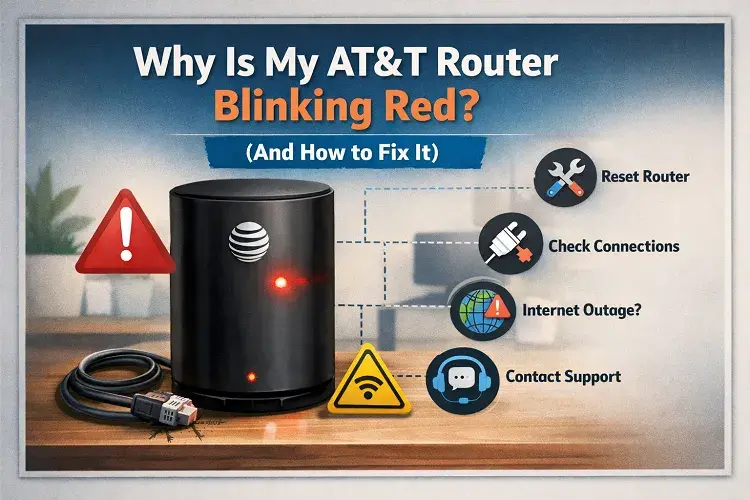
The Quick Answer: If your AT&T router (Wi-Fi Gateway) is blinking red, it means the device cannot establish a broadband connection to the AT&T network. To fix this, first unplug the router from the wall for 60 seconds and plug it back in. Next, check the green data cable plugged into the back of the router to ensure it is secure. If the light remains red after a reboot, you are experiencing a neighborhood outage or your AT&T hardware has permanently failed.
The Frustration of the Red Flashing Light
If you work from home, game online, or are trying to stream a movie, there is nothing more frustrating than looking over at your AT&T Wi-Fi Gateway and seeing a blinking red light.
At Compare Internet Hub, we analyze the most common internet connectivity issues across the country, and the “AT&T Red Light of Death” is one of the most frequently reported problems.
Before you spend three hours on hold with AT&T customer support or wait four days for a technician to arrive, there are several troubleshooting steps you can perform right now to try and force the router to reconnect to the network.
Blinking Red vs. Solid Red (What it Means)
Before we start troubleshooting, you need to look closely at your gateway (typically a BGW320, BGW210, or Pace 5268AC model) to see exactly what the light is doing.
- Blinking Red (Fast or Slow): This indicates a network connection issue. Your router is actively trying to communicate with the AT&T servers, but the signal is blocked, degraded, or completely disconnected.
- Solid Red: This is usually worse. A solid red light often indicates a hardware failure or a severe power issue. If the light is solid red, the gateway itself may have fried during a power surge and will need to be entirely replaced.
Step-by-Step Fixes for a Blinking Red Light
Follow these steps in order. Do not skip the first step, as a simple power cycle fixes 80% of minor connectivity glitches.
Step 1: The 60-Second Power Cycle
Do not just press the reset button on the back of the router. A proper power cycle requires draining the residual electricity from the device.
- Unplug the black power cord directly from the back of the AT&T gateway.
- Wait a full 60 seconds.
- Plug the power cord back in.
- Wait 3 to 5 minutes. The light will cycle through several colors (often white or green) while it boots up. If it turns solid green or solid white (depending on your model), your internet is restored. If it goes back to blinking red, move to Step 2.
Step 2: Check the Broadband Data Cable
If the power cycle didn’t work, the router physically isn’t receiving a signal from the wall.
- Look at the back of the gateway and find the port labeled Broadband.
- There should be a cable (usually green) plugged into this port. Unplug it.
- Check the copper pins inside the plastic connector to ensure they aren’t bent or covered in dust.
- Plug the cable back in until you hear a firm click.
- Trace that cable to the wall jack and ensure it is firmly plugged in there as well. A loose cable is the #1 cause of a sudden red blinking light.
Step 3: The Nuclear Option (Factory Reset)
If the cable is secure and a power cycle failed, your router’s internal software may be corrupted. You can force a factory reset, but be warned: This will erase your custom Wi-Fi network name and password, returning them to the default stickers on the side of the box.
- Find the small, recessed Reset button on the back of the gateway.
- Using a paperclip or a pen, press and hold this button for exactly 15 seconds.
- Release the button. The gateway will reboot. This process can take up to 10 minutes.
What If It Is Still Blinking Red?
If you have performed a factory reset and checked all the cables, but the light is still flashing red, you have done everything you can do on your end.
This means one of two things has happened:
- A Massive Outage: A construction crew may have cut the main AT&T fiber line in your neighborhood, or an AT&T server facility is down.
- Hardware Death: The modem inside the gateway has permanently failed.
Unfortunately, resolving either of these issues requires an AT&T technician. Depending on where you live, getting a technician to your house can take anywhere from 2 to 5 days.
Tired of Unreliable AT&T Internet?
If this isn’t the first time your AT&T router has left you without internet when you need it most, you do not have to accept it. You are paying for a service you aren’t receiving.
Compare Internet Hub connects frustrated homeowners with top-tier, reliable internet providers in their area. If your AT&T internet is down, you may be able to switch to a competitor like Spectrum, Earthlink, or Xfinity and have faster, more reliable internet installed as soon as tomorrow—often with a massive sign-on bonus or promotional rate.
Stop staring at a red blinking light. Call our nationwide dispatch center now to see which high-speed providers are servicing your zip code today.
Call (844) 817-0136 to Switch Internet Providers Now!
More ISP Troubleshooting Guides
Fix Connection Errors: Is your network suddenly dropping? Find out exactly Why Your Internet Slows Down at Night, or troubleshoot hardware failures with our guide to fixing an AT&T Router Blinking Red.
Manage Your ISP Account: Do not get hit with hidden fees. Learn how to avoid the Cox Data Cap, and if you are switching providers, make sure you read our Ultimate Verizon Fios Equipment Return Guide to avoid massive unreturned equipment charges.
Updated on: August 1, 2026