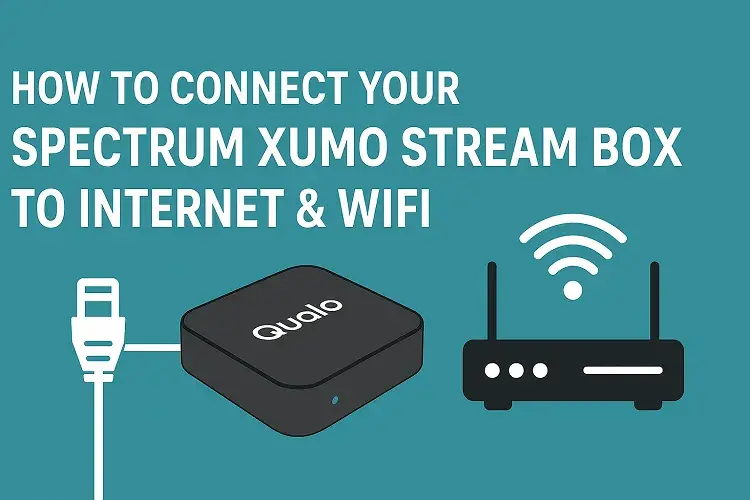
The Spectrum Xumo Stream Box delivers seamless access to live TV, streaming apps, and on-demand content. This 2026 update incorporates the latest hardware standards for improved compatibility and performance. Follow these steps to get your device connected quickly and efficiently.
How to Connect Spectrum Xumo and the Internet In 2026?
Hardware Setup
Before connecting to the internet, ensure your Xumo Stream Box is properly set up with your TV.
- Unbox and connect HDMI: Locate the HDMI cable included in the box. Plug one end into the HDMI port on the back of your Xumo Stream Box and the other into an available HDMI input on your TV.
- Power up the device: Use the new 2026-standard power adapter (USB-C compatible for faster charging). Insert the adapter into the power port on the Xumo Stream Box and plug it into a wall outlet. The power indicator light on the front should illuminate.
- Select TV input: Turn on your TV and switch to the corresponding HDMI input using your TV remote.
- Pair the remote: Remove the battery tab from the back of the voice remote. It should automatically pair; if not, press and hold the microphone button for 5 seconds to initiate pairing.
WiFi Connection
For wireless setup, the Xumo Stream Box supports WiFi 6 and WiFi 7 for faster speeds and better reliability. Opt for the 5GHz band for streaming if available, as it offers higher bandwidth than 2.4GHz.
- Access network settings: Once the device powers on, follow the on-screen prompts to reach the setup menu. Navigate to Settings > Network > Network Connection.
- Scan for networks: Select “WiFi” and allow the device to scan for available networks. Choose your home WiFi network from the list.
- Enter credentials: Input your WiFi password using the on-screen keyboard or voice remote. Confirm the connection.
- Choose band: If your router supports dual-band, select 5GHz for optimal performance (recommended for 4K streaming) or 2.4GHz for better range in larger homes.
- Tip: Ensure your router is WiFi 6/7 compatible to maximize speeds and reduce latency.
Wired Setup
For a more stable connection, especially for 4K streaming, use the built-in Gigabit Ethernet port.
- Connect Ethernet cable: Plug one end of an Ethernet cable (not included) into the Gigabit Ethernet port on the back of the Xumo Stream Box.
- Attach to router: Connect the other end to an available LAN port on your modem or router.
- Detect connection: The device will automatically detect the wired connection during setup. Navigate to Settings > Network > Network Connection and select “Ethernet” if prompted.
- Benefit: This provides a “lag-free” 4K experience with consistent speeds, ideal for households with high-bandwidth demands.
Activation
Complete the setup by activating your device with your Spectrum account.
- Scan QR code: On the activation screen, a QR code will appear. Use your smartphone camera to scan it, which launches the Spectrum app or website for guided activation.
- Sign in: Enter your Spectrum username and password. If you don’t have an account, create one via the app.
- Verify and finalize: Follow the prompts to confirm your subscription and personalize settings, such as parental controls or favorite channels.
- Test streaming: Once activated, browse apps like HBO Max or Disney+ (included with select plans) to ensure everything works.
Quick Troubleshooting
If you encounter issues during setup, try these fixes:
- Remote not pairing: Hold the remote close to the box and press the pairing button on the back of the device. Restart the box if needed.
- Weak WiFi signal: Check signal strength in Settings > Network > Connection Status. Indicators include:
- Excellent: Full bars, ideal for 4K.
- Good: Stable for HD streaming.
- Fair: May cause buffering; move closer to the router or use a wired setup.
- No internet detection: Restart your modem/router and Xumo box. Ensure the Ethernet cable is securely connected if wired.
- Activation errors: Double-check credentials or use the Spectrum app on your phone for an alternative login.
- General reset: Hold the power button on the box for 10 seconds to factory reset and start over.
A seamless streaming experience on Xumo depends entirely on the strength of your home internet plan.
Get a Better Deal on Your Spectrum Service
Users seeking the latest Spectrum internet offers or bundles, including the Xumo Stream Box, can unlock exclusive, unadvertised deals tailored for 2026. These promotions often include faster speeds, unlimited data, and discounted streaming add-ons to enhance your setup. By connecting with experts, you avoid standard pricing and access limited-time incentives not available online. Whether upgrading from basic plans or bundling TV and internet, personalized guidance ensures the best fit for your needs.
Call our specialized experts at (844) 817-0136 to claim your 2026 promotional offer and upgrade your home speeds today.
Once your stream box is connected, you can easily program your Spectrum remote to your TV for seamless control.
Many new Xumo users also want to know if Peacock is free with Spectrum to catch up on their favorite shows.
Updated on: September 20, 2026