Quick Fix: Try a 30-Second Power Cycle First!
Most Spectrum internet issues resolve with a simple reboot (power cycle) — not a full reset. This refreshes your connection without losing any settings.
Quick steps:
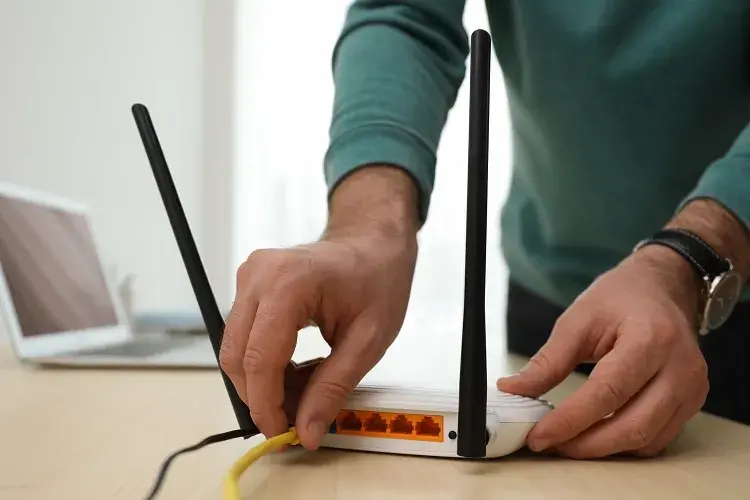
- Unplug the power cord from your Spectrum router (and modem if separate).
- Wait at least 60 seconds (count it out!).
- Plug it back in and wait 2–5 minutes for the lights to stabilize.
Test your internet. If it’s working, you’re done! If not, continue below.
Reboot vs. Factory Reset: What’s the Difference?
- Reboot (Power Cycle) — Temporarily turns off and on the device. Safe, no settings lost, passwords stay the same. Fixes temporary glitches like slow speed or dropped connections.
- Factory Reset — Wipes everything back to original settings. Erases custom WiFi name/password, port forwards, and other changes. Use only if reboot fails or you have major issues (like forgotten admin password).
Choose reboot first — it’s quicker and risk-free.
3 Easy Methods to Reset Your Spectrum Router
Method 1: Using the My Spectrum App (Easiest Digital Way)
No need to touch the router! Reset remotely from your phone.
- Open the My Spectrum app and sign in with your Spectrum username/password.
- Tap Services (bottom menu).
- Select Internet or your equipment section.
- Choose your router (or modem/router combo).
- Tap Restart Equipment or Troubleshoot → Restart (for reboot). For full reset options, follow any “Reset” prompts if available — most users get a soft reboot here.
- Wait 2–5 minutes for the device to come back online.
This is great for quick fixes without getting up!
Method 2: Physical Reset Button (For Factory Reset)
Use this for a true factory reset when other methods fail.
- Locate the small reset button — usually a pinhole on the back or bottom of the router (labeled “Reset”).
- Use a paperclip or pin to press and hold the button for 10–30 seconds (most models: 15 seconds until lights flash or turn off/on).
- Release when the lights blink or change — the router will restart automatically.
- Wait 5–10 minutes for full reboot and provisioning.
Warning: This erases all custom settings!
Method 3: The Power Method (Simple Reboot or Soft Reset)
Same as the quick fix, but extended for stubborn issues.
- Unplug the power cord from the router (and modem if combo unit).
- Wait 60 seconds (or up to 2 minutes for better results).
- Plug back in and allow 2–5 minutes for lights to go solid (usually blue/green for online).
- Test connection.
This often clears what a short unplug misses.
Troubleshooting the “Red Light” on the Spectrum Router
A red light (solid or blinking) usually means no internet connection or hardware issue.
- Blinking red: Router can’t reach Spectrum’s network — often an outage, cable problem, or provisioning issue.
- Solid red: Possible equipment failure, signal loss, or setup error.
After reset:
- If still red: Check cables, try a different outlet, or contact Spectrum support (outage or line issue likely).
- Reboot usually fixes temporary red lights. Factory reset + wait 10 minutes often reprovisions the device.
Run a speed test or check Spectrum’s outage map in the app if it persists.
After a Factory Reset: Setup Reminders
A full factory reset returns your router to defaults — you’ll need to reconnect devices.
- Look at the sticker on the back/bottom of the router for:
- Default WiFi network name (SSID)
- Default WiFi password
- Connect to that network first.
- Use the My Spectrum app or spectrum.net to customize your WiFi name/password again.
- Re-add smart devices, printers, etc., as needed.
If issues continue after these steps, reach out to Spectrum support — they can remotely reboot or diagnose further.
This guide works for most 2026 Spectrum-provided routers (including WiFi 6 models). Stay connected!
More Spectrum Troubleshooting Guides
Fix Your Spectrum Connection: Experiencing connectivity issues? Learn how to Reset Your Spectrum Router in 3 easy steps, or check our guide to see if Spectrum Internet is currently down in your area.
Manage Your Equipment: Keep your network secure by learning how to Change Your Spectrum WiFi Password, and get your entertainment center fully synced with our guide on how to program a Spectrum Remote.
If a simple reset doesn’t fix your connection, check to see if Spectrum internet is experiencing an outage in your local area.
Once your router is back online, it is highly recommended to change your Spectrum Wi-Fi password to secure your network.
Updated on: September 20, 2026