The fastest way to detect if someone is stealing your Wi-Fi is to log into your router’s administrative dashboard via a web browser (usually by typing 192.168.1.1 or 10.0.0.1 into the address bar). Navigate to the “Connected Devices” or “DHCP Client List” menu. This will display a list of every phone, computer, and smart TV currently using your internet. If you see unrecognized devices in this list, someone is stealing your bandwidth.
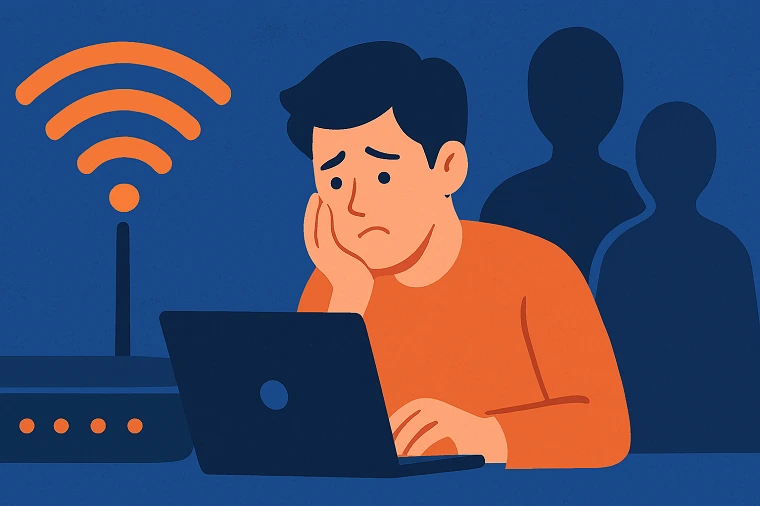
You sit down to stream a movie after a long day, but your television refuses to stop buffering. You check your phone, and the internet feels sluggish. Before you call your internet service provider to complain, you have to ask a very common question: Is my neighbor stealing my Wi-Fi?
Wi-Fi theft is incredibly common, especially in dense apartment buildings or suburban neighborhoods where houses sit close together. Not only does a “Wi-Fi leech” slow down your internet speed, but they also consume your monthly data allowance and pose a severe security risk to your personal network.
In this guide, the broadband security experts at Compare Internet Hub will show you exactly how to detect freeloaders, kick them off your network, and secure your router so they can never get back on.
4 Warning Signs That Someone is Stealing Your Wi-Fi
Before you dive into the technical settings of your router, look for these real-world symptoms of Wi-Fi theft:
1. Unexplained, Dramatic Slowdowns
If your internet speed usually easily handles 4K video, but suddenly crawls to a halt every evening at 6:00 PM, a neighbor might be logging on to download massive files or stream video using your bandwidth.
(Note: If you rule out Wi-Fi theft and your internet is still slow, you may simply be paying for an outdated, slow plan. Call (844) 817-0136
to see if cheaper, faster fiber internet has been activated in your neighborhood.
2. Spikes in Monthly Data Usage
If your ISP enforces a data cap (like Xfinity or Cox) and you suddenly receive a notification that you have exceeded your 1.2 TB allowance despite not changing your online habits, someone else is likely chewing through your data.
3. The “Blinking Light” Test
If you turn off every wireless device in your home (unplug your smart TVs, turn off your phones, power down your computers) and the “Wireless Activity” light on your physical router is still flashing rapidly, data is being transmitted to an unknown device.
4. Unfamiliar “Cast” Devices
If you open the YouTube or Spotify app on your phone and click the “Cast to Device” icon, do you see a television you don’t own? (e.g., “Neighbor’s Roku” or “Samsung TV 7-Series”). If their TV shows up on your casting list, it is connected to your Wi-Fi network.
How to Check Your Router for Thieves (Step-by-Step)
The only foolproof way to catch a Wi-Fi thief is to check the digital guest list inside your router.
Find Your Router’s IP Address: Look at the sticker on the back of your router. You will usually see a “Gateway IP” or “Admin IP” (e.g., 192.168.1.1, 192.168.0.1, or 10.0.0.1).
Log In: Type that IP address directly into your web browser’s URL bar and press Enter. You will be prompted for an Admin Username and Password (also located on the sticker on the back of the router).
Find the Connected Devices List: Look for a menu labeled “Attached Devices”, “Connected Devices”, “Device List”, or “DHCP Clients”.
Audit the List: You will see a list of every device connected to your network.
A Warning About Smart Devices!
Don’t panic immediately if you see devices with strange names like “HonHai” or “Espressif.” These are often the internal network cards used inside smart home devices like Amazon Echos, smart lightbulbs, or Ring doorbells. Count the devices in your home before assuming you have been hacked.
How to Kick Them Off and Secure Your Network
If you confirm there is a freeloader on your network, you need to evict them immediately.
Step 1: Change Your Wi-Fi Password (Instantly Kicks Everyone Off)
The absolute best method is to simply change your Wi-Fi password. Go to your router’s “Wireless Settings” and change the password.
Important: The moment you hit “Save,” your router will restart, and every device (including your own phones and TVs) will be kicked off the network. You will have to manually reconnect your devices using the new password, but the thief will be locked out forever.
Step 2: Upgrade to WPA3 Security
While you are in the Wireless Settings, check your network encryption type.
If it is set to WEP or WPA, your network is dangerously outdated and can be hacked in minutes by a teenager with a laptop.
Change the setting to WPA2 (AES) or, if your router supports it, the modern WPA3 standard.
Step 3: Disable WPS (Wi-Fi Protected Setup)
WPS is the physical button on the back of your router that allows devices to connect without a password. Unfortunately, a hacker can easily exploit the WPS PIN system to bypass your password entirely. Find the WPS setting in your router’s dashboard and turn it OFF.
Still Dealing with Slow Internet? Stop Guessing.
If you have secured your Wi-Fi, kicked off the freeloaders, and your internet is still buffering, your current internet service provider is likely failing you. Want to know if a faster, cheaper provider is available at your address? Call the broadband experts at Compare Internet Hub today at (844) 817-0136. We will instantly run a free, unbiased ZIP code check to verify availability and help you lock in a better promotional rate for a faster network.
Updated on: September 14, 2026