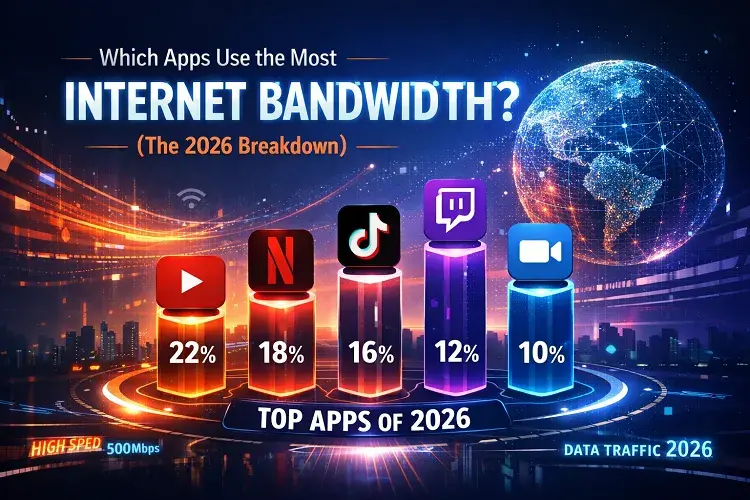
The applications that use the most internet bandwidth are video streaming services (like Netflix and YouTube in 4K), which can consume up to 15 GB of data per hour. This is followed closely by cloud gaming platforms (like Xbox Cloud Gaming) and infinite-scroll video social media apps like TikTok and Instagram Reels. If these apps are causing your home network to buffer, you likely need to upgrade your bandwidth.
Have you ever sat down to watch a movie on your smart TV, only for it to freeze the exact moment your teenager opens TikTok in the next room? If so, you have experienced a bandwidth bottleneck.
Bandwidth is simply the capacity of your internet connection. Think of it like a highway: the wider the highway (higher bandwidth), the more cars (data) can travel on it at the same time without causing a traffic jam. In 2026, the applications we use on a daily basis are sending more “cars” onto the network than ever before.
Understanding which apps are hogging your home Wi-Fi is the first step to eliminating lag. Below, we break down exactly how much data your favorite applications are consuming and provide actionable tips on how to manage them.
Top Apps Use the Most Internet Bandwidth
1. Video Streaming: The Bandwidth Heavyweights
Video streaming is, without a doubt, the single largest consumer of internet bandwidth in the modern household. Because video files consist of thousands of high-resolution images played in rapid succession alongside synchronized audio, they require a massive, continuous stream of data.
The amount of bandwidth a streaming app uses depends entirely on the resolution (video quality) you select.
Netflix, Hulu, Prime Video, and Disney+ Data Usage
- Standard Definition (SD / 480p): Uses approximately 0.7 GB to 1 GB per hour. This requires a minimum internet speed of 3 Mbps.
- High Definition (HD / 1080p): Uses approximately 3 GB per hour. This requires a minimum internet speed of 5 to 10 Mbps.
- Ultra High Definition (4K / UHD): Uses a staggering 7 GB to 15 GB per hour. This requires a continuous minimum internet speed of 25 Mbps per device.
The Wi-Fi Impact: If you have a 100 Mbps internet plan and four people in your house are trying to watch separate 4K streams at the same time, you will max out your entire bandwidth limit, leading to immediate buffering for everyone.
2. Social Media: The Silent Data Drainers
In the past, social media apps like Facebook and Twitter used very little data because they were primarily text and image-based. Today, social media is dominated by infinite, auto-playing video feeds.
TikTok, Instagram Reels, and YouTube Shorts
Because these apps constantly pre-load high-definition videos in the background so you can swipe without waiting, they are incredibly resource-intensive.
- TikTok: Uses approximately 800 MB to 1.5 GB per hour of continuous scrolling.
- Instagram (Reels): Uses roughly 1 GB per hour.
- YouTube (Mobile App): Depending on auto-quality settings, uses 1.5 GB to 3 GB per hour.
The Wi-Fi Impact: While one phone scrolling TikTok won’t crash a modern home network, having three teenagers mindlessly scrolling short-form video simultaneously can consume 15 to 30 Mbps of your total bandwidth, easily disrupting a parent’s Zoom call in the home office.
3. Video Conferencing: The Work-From-Home Challenge
Since the shift to remote work, video conferencing apps have become critical infrastructure. While they don’t use as much data as a 4K Netflix movie, they require something much more sensitive: Symmetrical Bandwidth.
When watching a movie, you are only downloading data. When you are on a video call, you are simultaneously downloading video of your coworkers and uploading a live video feed of yourself.
Zoom, Microsoft Teams, and Google Meet Data Usage
- 1-on-1 Standard Call: Uses about 500 MB to 800 MB per hour.
- Group Video Call (Standard): Uses about 1 GB to 1.5 GB per hour.
- HD Group Video Call (1080p): Uses up to 2.5 GB to 3 GB per hour.
The Wi-Fi Impact: If your internet connection has a fast download speed but a terrible upload speed (a common issue with older cable and DSL internet plans), your video feed will appear frozen or pixelated to your coworkers, even if you can hear them perfectly.
4. Gaming: Downloads vs. Cloud Streaming
When it comes to video games, the way you play dictates how much bandwidth you use.
Multiplayer Gaming
Surprisingly, playing an online multiplayer game like Fortnite, Call of Duty, or Valorant uses very little actual data—typically only 40 MB to 150 MB per hour. The game only sends small packets of data (like player coordinates and bullet trajectories) back and forth. However, multiplayer gaming requires extreme stability and low latency (ping) so the data arrives instantly without lag.
Game Downloads and Updates
Modern video games are massive software files. Downloading a blockbuster game like Call of Duty: Warzone requires transferring 100 GB to 150 GB of data. If your console starts a background update for a game of this size, it will aggressively hoard all available bandwidth, slowing the internet to a crawl for every other device in the house until the download finishes.
Cloud Gaming (Xbox Cloud Gaming, GeForce Now)
Instead of downloading the game, cloud gaming streams the live gameplay to your screen, similar to Netflix. This is the most bandwidth-intensive activity possible.
- 1080p Cloud Gaming: Uses 3 GB to 5 GB per hour.
- 4K Cloud Gaming: Uses up to 10 GB to 15 GB per hour.
How to Stop Apps from Hogging Your Bandwidth
If you are constantly dealing with a congested network, you have two options: manage the apps or upgrade your connection.
1. Adjust App Settings
Almost every major app allows you to lower its data consumption.
- Netflix/YouTube: Go into your account settings and change the default playback quality from 4K/HD to “Data Saver” or 1080p.
- TikTok/Instagram: Enable “Data Saver” mode in the app settings, which stops videos from auto-loading in high resolution.
- Gaming Consoles: Set your Xbox or PlayStation to only download massive game updates during the middle of the night (e.g., 3:00 AM) when no one else is using the internet.
2. Enable QoS on Your Router
Modern Wi-Fi routers feature Quality of Service (QoS) settings. You can log into your router’s app and tell it to prioritize specific devices. For example, you can give your work laptop “High Priority” status. This ensures that even if someone starts streaming 4K video in the living room, your Zoom calls will never drop.
Is It Time for a New Internet Connection?
If you have adjusted your app settings and your Wi-Fi is still constantly buffering, the hard truth is that your household has simply outgrown your current internet plan. In 2026, the average home requires at least 300 Mbps to 500 Mbps to keep all those apps running smoothly.
If you are tired of negotiating with your family over who gets to use the Wi-Fi, it is time for an upgrade.
CompareInternetHub is the fastest way to find a better connection. Simply enter your zip code into our tool to instantly see which fiber-optic and high-speed cable providers have wired your specific street. You can easily compare the fastest speeds, find 100% unlimited data plans, and secure a new connection that can handle every app in your home without breaking a sweat.
Frequently Asked Questions (FAQs)
Does leaving apps open in the background use bandwidth?
Yes, but typically very little. Apps like email or weather widgets will periodically “ping” the server for small updates (using kilobytes of data). However, leaving a video-streaming app like YouTube auto-playing in the background will continue to consume massive amounts of bandwidth.
Do security cameras use a lot of bandwidth?
Yes. If you have Wi-Fi security cameras (like Ring or Nest) set to continuously record and upload HD video to the cloud, they can consume a massive amount of your monthly upload bandwidth. We recommend setting them to record only when motion is detected.
How do I check which apps are using the most data on my phone?
On an iPhone, go to Settings > Cellular and scroll down to see exactly how much data each app has consumed. On Android, go to Settings > Network & Internet > Internet and tap on your provider to view your app data usage breakdown.
Will a Wi-Fi extender stop my apps from buffering?
Only if the buffering is caused by a weak signal (e.g., you are too far from the router). If the buffering is caused by the fact that you don’t have enough total bandwidth from your internet provider to support all the apps running in your house, an extender will not help. You need to upgrade your internet plan.
Updated on: May 23, 2026