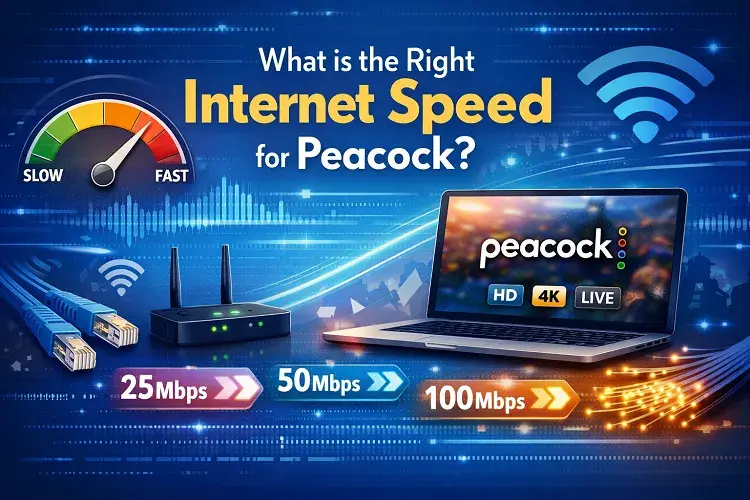
The right internet speed for Peacock is at least 8 Mbps for high-definition (HD) streaming and a minimum of 25 Mbps for 4K Ultra HD content. However, for households with multiple connected devices or those streaming live sports like the Premier League, an internet plan of 100 Mbps or higher is strongly recommended to prevent buffering.
If there is one thing that can ruin a gripping episode of Yellowstone, a high-stakes Premier League match, or a main event at WrestleMania, it is the dreaded spinning circle of buffering. As Peacock continues to expand its massive library of exclusive live sports, blockbuster movies, and beloved sitcoms, ensuring your home internet is up to the task has never been more critical.
But exactly how much internet speed do you actually need to stream Peacock smoothly? The answer depends entirely on what resolution you prefer, how many people live in your house, and what else is happening on your network while you watch.
In this comprehensive guide, we will break down Peacock’s official speed requirements, explain “real-world” bandwidth needs, and show you how to optimize your connection for flawless streaming.
The Official Peacock Internet Speed Requirements
NBCUniversal (the parent company of Peacock) provides specific baseline requirements for their streaming service. If you look at their official technical documentation, here is what they mandate:
- 3.0 Mbps (Minimum): This is the absolute bare minimum required to load the Peacock app and stream standard definition (SD) content. In 2026, viewing content in SD on a large modern television will look noticeably pixelated and blurry.
- 8.0 Mbps (Recommended for HD): This is the speed required to stream crisp, 1080p High Definition (HD) content. For most users watching on standard televisions, tablets, or laptops, 8 Mbps of dedicated bandwidth will provide a clear, uninterrupted picture.
- 25.0 Mbps (Required for 4K UHD): If you have a premium subscription and a 4K television, Peacock requires a minimum of 25 Mbps to stream their library of 4K Ultra HD movies and premium live events.
The “Real World” Speed: Why the Minimum Isn’t Enough
While Peacock’s official requirement of 8 Mbps for HD sounds incredibly low, it comes with a massive caveat: that 8 Mbps must be a dedicated connection.
In the real world, your home internet connection is shared among every device connected to your router. We call this your “Household Bandwidth.” Think of your internet connection like a highway, and the bandwidth as the number of lanes. If you have only a two-lane highway (a slow internet plan) and 10 cars trying to drive on it simultaneously (smartphones, laptops, smart TVs, and security cameras), traffic will slow to a crawl.
Here is a realistic breakdown of the internet speeds you actually need based on your household size:
1. The Solo Streamer (Plan Recommendation: 50 – 100 Mbps). If you live alone and primarily use your internet to browse social media on your phone while watching Peacock on your TV, a 50 Mbps plan is perfectly adequate. It provides plenty of headroom for your phone to update apps in the background while your TV pulls the 8 Mbps needed for an HD stream.
2. The Couple or Small Family (Plan Recommendation: 200 – 500 Mbps). In a household of two to three people, network congestion becomes a real issue. Picture this scenario: One person is streaming a 4K movie on Peacock in the living room (using 25 Mbps), another is playing a competitive online video game in the bedroom, and three smartphones are connected to the Wi-Fi. In this scenario, a 300 Mbps or 500 Mbps plan ensures that nobody experiences lag, latency, or buffering.
3. The Heavy Tech Household (Plan Recommendation: 1 Gbps / 1,000 Mbps) For a family of four or more with multiple smart TVs, tablets, gaming consoles, and smart home devices (like Ring doorbells or smart thermostats), a Gigabit (1,000 Mbps) connection is the gold standard. A Gigabit plan provides so much bandwidth that you could have four different TVs streaming Peacock in 4K simultaneously without coming close to maxing out your connection.
Live Sports on Peacock: Why It Changes Everything
Peacock has differentiated itself from competitors like Netflix and Hulu by becoming a powerhouse for live sports. It is the exclusive home to the NFL’s first-ever streaming-only playoff games, massive Premier League soccer slates, Big Ten College Football, and the entire WWE Premium Live Event calendar.
Streaming live sports is fundamentally different than streaming a pre-recorded movie like Oppenheimer.
When you watch a pre-recorded movie, the Peacock app uses a technique called “buffering.” It downloads a few minutes of the movie ahead of what you are currently watching. If your internet speed drops for ten seconds, you won’t notice because the app has a stockpile of video ready to play.
Live sports cannot be buffered in advance because they are happening in real-time. The app must maintain a constant, unwavering connection to the live feed. If your internet connection drops or stutters during a live broadcast, the stream will immediately freeze, pixelate, or skip—often right as the quarterback is throwing a crucial pass.
For households that rely on Peacock for live sports, we strongly recommend a fiber-optic internet connection of at least 300 Mbps. Fiber internet offers significantly lower latency and higher stability than traditional cable or 5G home internet, making it the superior choice for live broadcasts.
See More: What Channel is Peacock on Spectrum?
Signs Your Internet Speed is Too Slow for Peacock
How do you know if your current internet plan is the culprit behind your poor viewing experience? Look for these three distinct signs:
- The “Quality Drop”: You are watching an episode of The Office when the picture suddenly becomes incredibly blurry, making faces look like blocky, pixelated mosaics. This means your internet speed dropped below 8 Mbps, and Peacock automatically downgraded the video quality to prevent the stream from stopping entirely.
- The Spinning Circle: The most obvious sign. If the video pauses and a circle spins in the center of the screen, your internet speed has fallen below the bare minimum required to load the video.
- Audio Desync: Sometimes, a slow connection causes the audio to play a few seconds before or after the actors’ lips move. This is a synchronization error caused by inconsistent packet delivery over your network.
How to Improve Your Peacock Streaming Quality Without Upgrading
Before you call your internet service provider (ISP) and pay for a more expensive plan, there are several free troubleshooting steps you can take to optimize your current network for Peacock:
- Ditch the Wi-Fi for Ethernet: Wi-Fi signals are susceptible to interference from walls, microwaves, and even your neighbor’s router. If your smart TV or streaming box (like an Apple TV or Roku) is close to your router, connect it directly using a hardwired Ethernet cable. This guarantees you are getting 100% of the speed you pay for.
- Move Your Router: If you must use Wi-Fi, ensure your router is in a central, elevated location. Do not hide it in a closet, behind a massive television, or in the basement. Wi-Fi signals travel outward and downward; placing the router high up in an open space drastically improves coverage.
- Disconnect Idle Devices: If you are experiencing buffering during a major live event, briefly disconnect devices you aren’t using. Turn off the Wi-Fi on idle tablets or pause massive video game downloads on your consoles to free up bandwidth for your stream.
- Upgrade Your Equipment: If you are paying for a 500 Mbps internet plan but using a router you bought in 2017, you are bottlenecking your own network. Upgrading to a modern Wi-Fi 6 or Wi-Fi 7 mesh system will dramatically improve how efficiently your internet is distributed around your home.
The Final Verdict: Check Your Speeds Today
Peacock offers an incredible library of content, but unlocking its full potential—especially in crisp 4K or during high-stakes live sports—requires a reliable internet connection. While the official minimums are quite low, navigating a modern, multi-device household demands significantly more bandwidth.
If you find yourself constantly battling buffering screens, it might be time to evaluate your current ISP. Use our CompareInternetHub speed test and comparison tools to see if your current connection measures up, or explore faster fiber-optic and cable alternatives available at your specific address to ensure your next movie night goes off without a hitch.
Frequently Asked Questions
1. Why does Peacock keep buffering on my smart TV?
Peacock buffers when your internet connection drops below the required 8 Mbps for HD streaming. This is usually caused by network congestion (too many devices using the Wi-Fi at once), a weak Wi-Fi signal reaching the TV, or an outdated router.
2. Can I watch Peacock with 10 Mbps internet?
Technically, yes. Peacock requires 8 Mbps for an HD stream, so a 10 Mbps connection is sufficient for a single device. However, if anyone else in the home connects to the Wi-Fi to browse the web or stream music, your stream will likely buffer due to the lack of available bandwidth.
3. How much data does streaming Peacock use?
Streaming Peacock in standard definition uses approximately 1 GB of data per hour. Streaming in 1080p HD consumes roughly 3 GB per hour, while streaming in 4K Ultra HD can use upwards of 7 GB per hour. If your internet plan has a data cap, heavy 4K streaming can consume your allowance quickly.
4. Does Peacock require a faster internet connection for live sports?
While the technical bandwidth requirement (8 Mbps for HD) remains the same, live sports require a much more stable connection with low latency. Because live events cannot buffer minutes of content in advance, any temporary dip or stutter in your internet connection will cause immediate freezing during the live broadcast. Fiber internet is highly recommended for live sports.
5. Why is Peacock blurry, but Netflix is clear?
Different streaming services use different compression algorithms. Peacock may be more aggressive in dropping video quality to prevent buffering when it detects a weak Wi-Fi signal. If Netflix is clear but Peacock is blurry, try hardwiring your streaming device with an Ethernet cable to ensure a stable connection to the Peacock servers.
Updated on: May 11, 2026