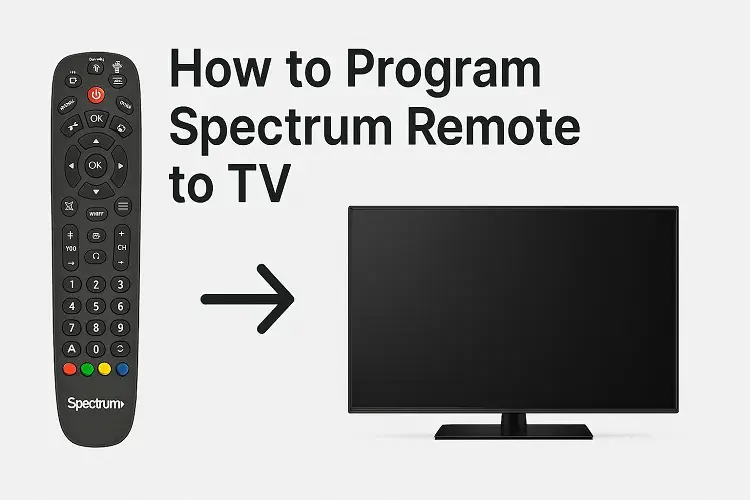
Programming a Spectrum remote is quick and easy—most users can do it in under 5 minutes using the built-in quick setup, auto code search, or manual code entry. Identify your remote model (check the battery compartment), turn on your TV, and follow the method that matches your device. This works for TVs, soundbars, DVD players, and more, with the latest instructions updated for the 2026 Spectrum Guide and CLIKR remotes.
Why You Need to Program Your Spectrum Remote?
Your Spectrum remote comes pre-programmed to control your cable box, but to unlock full control over your TV’s power, volume, and input switching, programming is essential. Whether you’re setting up a new TV, replacing a lost remote, or troubleshooting a non-responsive one, knowing how to program it saves time and frustration. In 2026, Spectrum’s remotes support RF pairing for reliable control even through walls, and methods have been streamlined for modern 4K TVs and smart soundbars.
This comprehensive user guide covers every method across popular Spectrum remote models, including the Spectrum Guide Remote (SR002R), Universal CLIKR-5 (UR5U-8780L/8790L), 1060BC2/1060BC3, and others. We’ll include brand-specific codes, troubleshooting, and pro tips. By the end, you’ll have your entertainment system fully synced.
Step 1: Identify Your Spectrum Remote Model
Before starting, know which remote you have. Flip it over and remove the battery cover—there’s a model number inside.
- Spectrum Guide Remote (SR002R): Sleek black remote with a large “GUIDE” button. Most common in 2026 setups.
- Universal CLIKR-5 (UR5U-8780L or 8790L): Older but still widely used; features colored buttons (A, B, C, D) and a “CBL” mode.
- 1060BC2/1060BC3: Compact model for basic setups.
- Other models: UR5U-8820L, UR3-SR3M, Philips RC122, etc. Visit spectrum.net/support/tv/program-your-remote and match your remote to the list.
Pro Tip: If unsure, use the Spectrum TV app on your phone—it can guide you via on-screen prompts.
Preparation Before Programming
- Install fresh AA batteries: Weak batteries cause 80% of programming failures.
- Turn on the device: Your TV, soundbar, or DVD player must be powered on manually.
- Point the remote directly at the device: Line of sight is key for IR remotes.
- Clear obstructions: Remove anything blocking the signal.
- Have your TV brand ready: Common ones include Samsung, LG, Sony, Vizio, TCL, Hisense, and Insignia.
Method 1: Quick Setup (Fastest for Spectrum Guide Remote)
This brand-based method is ideal for 90% of users and works on the Spectrum Guide Remote.
- Turn on your TV.
- Simultaneously press and hold MENU and OK until the INPUT button blinks twice (about 3 seconds).
- Press and release the TV POWER button once.
- Find your TV brand in the list below and press/hold the corresponding number key:
TV Brand Key Insignia/Dynex/Onn 1 LG/Zenith 2 Panasonic 3 Philips/Magnavox 4 RCA/TCL 5 Samsung 6 Sharp 7 Sony 8 Toshiba 9 Vizio 0 - Release the key when the TV turns off. The INPUT button blinks twice to confirm.
- Test: Press TV POWER to turn on/off, VOL +/- for volume, and INPUT to switch sources.
For Soundbars or Audio Devices: Repeat steps but select AUDIO mode first.
Time: 30 seconds. Success rate: High for popular brands.
Method 2: Auto Code Search (Universal for All Models)
No codes? No problem. This scans hundreds of codes automatically—perfect for obscure brands or 2026 smart TVs.
For Spectrum Guide Remote:
- Turn on the TV.
- Hold MENU + OK until the INPUT blinks twice.
- Press TV POWER once (INPUT lights solid).
- Press CHANNEL UP repeatedly until the TV turns off (it cycles every 3 seconds).
- Press the POWER to turn it back on, then OK to save.
For CLIKR-5 (UR5U-8780L/8790L):
- Turn on the device.
- Hold TV + OK/SEL for 3 seconds (LED blinks).
- Press CHANNEL UP or DOWN until the device turns off.
- Press POWER to test, then TV to lock the code.
For 1060BC2/1060BC3:
- Hold SETUP until the mode key blinks twice.
- Enter 991 (blinks twice).
- Press CHANNEL UP until the TV turns off.
- Press SETUP to save.
Advanced Variation: For volume lock (control TV volume in CABLE mode), after saving: Hold OK/SEL + CBL for 3 seconds, press VOL UP, then TV.
Time: 1-2 minutes. Great for TCL, Hisense, or Roku TVs.
Method 3: Manual Code Entry (Most Precise)
Use this for exact control. Codes are 3-5 digits depending on the model.
Spectrum Guide Remote:
- Hold MENU + OK until the INPUT blinks twice.
- Enter the first code from the list for your brand (INPUT blinks twice to confirm).
- Test power and volume. If there is no response, repeat with the next code.
Full 2026 TV Code List (Compiled from official Spectrum sources):
Brand Codes (Try in Order) Samsung 10812, 10060, 10702, 10650, 11903, 258, 050, 363, 143 LG 11423, 10017, 11265, 10178, 11768, 363, 113, 116, 102 Sony 10000, 10810, 11317, 001, 608, 651 Vizio 11758, 10864, 11756, 386, 387, 624, 625, 675 TCL 11756, 705, 749 Hisense 419, 442, 619, 630, 631, 363, 752 Insignia 11423, 11564, 10171, 11204, 11780 RCA 11547, 10178, 11447, 10047, 10679, 333, 065, 116 Sharp 10818, 10093, 10688, 251, 019, 028, 363 Toshiba 11524, 10156, 11256, 138, 030, 007, 258, 325 Panasonic 10250, 11480, 11457, 080, 034, 056 Philips 11454, 11866, 10054, 10690, 11454 Onn 705, 749 Dynex 11463, 11780, 11810 For CLIKR-5:
- Hold TV + OK/SEL for 3 seconds (LED on).
- Enter 3-digit code (e.g., 258 for Samsung).
- Press POWER—TV should turn off/on. Save with TV.
For Older Models (1060BC2):
- Hold SETUP until the mode blinks twice.
- Enter 5-digit code.
- Mode blinks twice to confirm.
Soundbar Codes (Examples): Bose (347), Yamaha (568), Sony (001).
Time: 1 minute. Use this after the quick setup fails.
Method 4: RF Pairing for Cable Box (Advanced)
For hands-free control:
- Press MENU on the remote.
- Go to Settings & Support > Support > Remote Control > RF Pair New Remote.
- Follow TV prompts—remote pairs via radio frequency.
This works even if the box is hidden.
Programming Multiple Devices
- Soundbar: Use AUDIO mode + codes above.
- DVD/Blu-ray: Hold DVD + OK/SEL, enter code.
- Game Console: AUX mode for Roku (565) or Xbox (826).
- Macro Buttons (CLIKR-5): Program favorites—hold CBL + MACRO + OK/SEL, enter channel codes.
Troubleshooting: Common Issues & Fixes
- Remote not responding: Replace batteries, reset by holding MENU + OK + POWER for 10 seconds.
- Wrong inputs: Reprogram volume lock (see above).
- No power control: Try the next code or auto search.
- LED blinks but nothing happens: Check line of sight; clean IR sensor.
- 2026-Specific: For Xumo Stream Box or WorldBox, use app-based pairing via the Spectrum TV app.
- Still stuck? Log in to spectrum.net, search “remote,” or call 1-855-707-7328.
Reset to Factory: Hold SETUP + CBL + POWER until LED blinks 4 times.
Bonus: Use the Spectrum TV App as a Backup Remote
Download the free Spectrum TV app (iOS/Android). It turns your phone into a universal remote—pair via “Send to TV” for live control without programming.
Why These Methods Work in 2026
Spectrum updated remotes for better compatibility with OLEDs, QLEDs, and Dolby Atmos soundbars. Quick setup covers 95% of installs, while auto search handles the rest. Always check spectrum.net/support/remote for model-specific PDFs.
Ready to Supercharge Your Spectrum Experience? Buy Spectrum Internet, TV, and Mobile bundles from CompareInternetHub today—the #1 site for comparing deals, speeds, and prices. Get the fastest fiber plans, unlimited data, and exclusive promotions starting at just $49.99/mo. Don’t overpay—shop smart with CompareInternetHub!