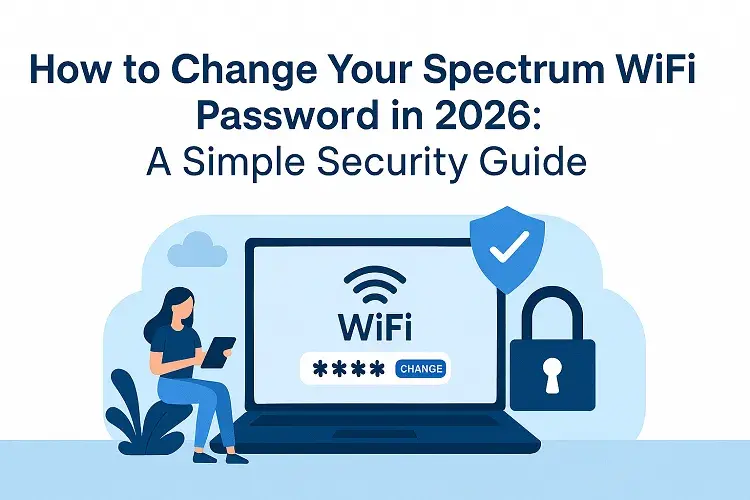
In 2026, keeping your home WiFi secure is more important than ever. With the rise of smart homes packed with IoT devices, WiFi 6, and now WiFi 7 routers from Spectrum’s Advanced WiFi lineup, and stronger encryption standards like WPA3, regularly updating your WiFi password helps protect against unauthorized access, data breaches, and bandwidth theft. A fresh, strong password ensures your network stays private and your connected devices—from security cameras to gaming consoles—run smoothly and safely.
Spectrum makes changing your WiFi password straightforward through two main methods: the user-friendly My Spectrum App (ideal for most customers with modern Advanced WiFi routers supporting WiFi 6/7) or the traditional router web portal for manual access.
Method 1: Change Your Spectrum WiFi Password Using the My Spectrum App (Recommended)
The My Spectrum App is the easiest and most modern way, especially if you have Spectrum’s Advanced WiFi equipment. It supports seamless management of WiFi 6 and WiFi 7 features like enhanced device prioritization and whole-home coverage.
- Download and open the app — If you don’t have it, get the free My Spectrum App from the App Store (iOS) or Google Play (Android).
- Sign in — Use your Spectrum username and password. (If you don’t have an account, create one quickly within the app.)
- Go to Services — Tap the Services tab at the bottom of the screen.
- Select Your Network — Under “Your Spectrum Network,” tap on your WiFi network (it may show your current network name or router).
- Edit Network Details — Choose the option to update or edit your network name (SSID) and/or password. Enter your new password in the provided field.
- Save Changes — Tap Save or Update. Confirm if prompted.
- Reconnect Devices — Your WiFi network will update immediately. You’ll need to enter the new password on all connected devices (phones, laptops, smart TVs, etc.).
Note: Changing your password will temporarily disconnect all devices until you update them—do this at a convenient time.
Method 2: Change Your Spectrum WiFi Password Using the Router Web Portal
For hands-on control or if the app isn’t available, access your router’s admin page directly. This works with most Spectrum-provided routers.
- Connect to your network — Use a computer or device connected to your Spectrum WiFi (via WiFi or Ethernet cable for stability).
- Find your router’s IP address — Common Spectrum router addresses are http://192.168.0.1 or http://192.168.1.1. (Check the sticker on your router for the exact one, or search your device’s network settings for the “Default Gateway.”)
- Open a web browser — Enter the IP address (e.g., http://192.168.0.1) into the address bar and press Enter.
- Log in to the admin panel — Use the default credentials if unchanged (often username: admin and password: admin or password—check your router sticker or documentation). If you’ve set custom admin credentials before, use those.
- Navigate to WiFi settings — Look for sections like Wireless, WiFi Settings, Basic Wireless, or Security.
- Update the password — Find the field for Password, Passphrase, Pre-Shared Key, or WPA Key. Enter your new password (ensure it meets WPA3 requirements for best security).
- Save and apply — Click Save, Apply, or Submit. Your router may restart briefly.
- Reconnect devices — Update the new password on all your connected devices.
Tip: If you encounter issues logging in, reset the router to factory defaults (hold the reset button for 10-15 seconds), but note this will erase custom settings.
Pro Tips for Creating an “Un-Hackable” Password in 2026
- Use at least 12-16 characters with a mix of uppercase/lowercase letters, numbers, and symbols.
- Avoid common words, birthdays, or “password123″—opt for a passphrase like “BlueSky2026!CoffeeRun#FastNet”.
- Enable WPA3 security if your Advanced WiFi router supports it (most do in 2026).
- Consider changing your network name (SSID) too—avoid broadcasting personal info like your address or name.
- After updating, use the app to monitor connected devices and pause any unknowns.
Once you’ve secured your current setup with a strong, updated password, take a moment to think about your overall home internet performance. If you’re noticing slowdowns during peak hours, lag in 4K streaming/gaming, or spotty coverage in larger homes—especially with more WiFi 7-capable devices joining the network—it might be time to level up.
Get the Most Out of Your Connection. If your current speeds aren’t keeping up with your household’s demands in 2026, explore the latest Spectrum Internet plans to unlock faster multi-gig options, enhanced Advanced WiFi with WiFi 7 technology, and better whole-home coverage. CompareInternetHub makes it simple by offering the best localized deals tailored to your area, comparing current promotions, and guiding you through an easy upgrade process—including the newest Spectrum equipment for optimal performance. Visit CompareInternetHub today to see if a quick plan refresh could transform your home connectivity.
Updated on: February 8, 2026