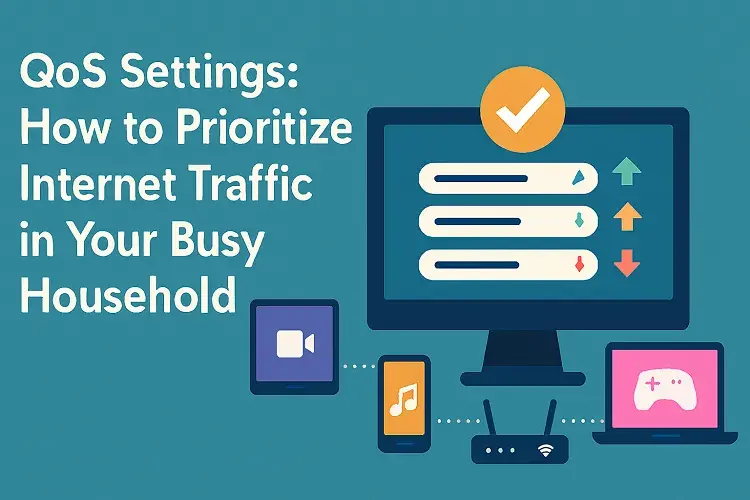
In today’s connected homes, multiple family members stream videos, play online games, join video calls, download files, and run smart devices simultaneously. This often leads to frustrating issues like buffering, lag in games, dropped Zoom calls, or slow browsing. Quality of Service (QoS) settings on your router offer a smart solution by prioritizing internet traffic, ensuring critical activities get the bandwidth they need without requiring an expensive plan upgrade.
QoS, or Quality of Service, is a built-in router feature that manages and prioritizes network traffic. It controls how your router allocates limited bandwidth among devices and applications, creating a “fast lane” for important data while deprioritizing less urgent traffic (sources: Dong Knows Tech, Fortinet). When the network is congested—common in busy households with 10+ devices—QoS prevents everything from competing equally, reducing latency, jitter, and packet loss for time-sensitive tasks like gaming or VoIP calls.
Why QoS Matters in a Busy Household
Modern homes average dozens of connected devices, from smartphones and laptops to smart TVs, security cameras, and IoT gadgets. Without prioritization, a large file download or 4K stream can hog bandwidth, causing lag elsewhere. QoS addresses this by:
- Reducing lag for online gaming and video conferencing.
- Preventing buffering during streaming on services like Netflix or YouTube.
- Maintaining smooth performance for work-from-home calls or school activities.
- Optimizing overall network efficiency without over-provisioning bandwidth.
Experts note that QoS is especially valuable for real-time applications like gaming and VoIP, where low latency is crucial (Dong Knows Tech). In households with multiple users, enabling QoS can dramatically improve experience during peak hours, even on mid-tier internet plans.
Types of QoS Prioritization
Routers offer various QoS approaches:
- Device-based prioritization: Assign a higher priority to specific devices (e.g., your gaming PC or work laptop) via MAC address or IP.
- Application-based prioritization: Target apps or services (e.g., Zoom, Fortnite, Netflix) for highest priority.
- Traffic type prioritization: Categorize by type, such as gaming, streaming, VoIP, or web surfing.
- Adaptive/Dynamic QoS: Automatically detects and prioritizes based on usage (common on ASUS and some Netgear models).
- Bandwidth limiter: Caps usage for certain devices to prevent them from overwhelming the network.
For gaming and streaming in multi-user setups, prioritize gaming consoles or apps to the highest level, then streaming, while deprioritizing background downloads.
How to Set Up QoS on Popular Routers
Setup varies by brand, but most involve accessing your router’s admin page (usually 192.168.1.1 or routerlogin.net) via a browser or app. Always test your internet speeds first (use speedtest.net) to input accurate upload/download limits—QoS works best when set to 90-95% of your actual speeds to avoid bufferbloat.
TP-Link Routers (common for budget-friendly homes):
- Log in to tplinkwifi.net or the Tether app.
- Go to Advanced > QoS > Settings.
- Enable QoS.
- Enter your ISP’s max upload and download speeds (slightly below actual for best results).
- Add high-priority devices or apps (e.g., set your console to “High Priority” for a set duration).
- Save and apply. Note: Disable NAT Boost if conflicting.
Netgear Routers (Nighthawk/Orbi series):
- Access routerlogin.net or the Nighthawk app.
- Navigate to Advanced > Setup > QoS Setup.
- Enable Upstream QoS (Optimized for Gaming if available).
- Run the built-in speed test or enter manual speeds.
- Add rules: Prioritize by application (e.g., online gaming), device (MAC/IP), or Ethernet port.
- Set priorities: Highest for gaming, High for streaming.
- Apply changes.
ASUS Routers (excellent for adaptive features):
- Log in to router.asus.com.
- Go to Adaptive QoS > Enable QoS.
- Choose Adaptive QoS type (e.g., prioritize gaming or media streaming).
- Use drag-and-drop to reorder priorities (e.g., Gaming > Media Streaming > Web Surfing).
- For Bandwidth Limiter, cap heavy users.
- Apply—ASUS adaptive mode auto-handles much of the work.
Google Nest or similar mesh systems: Many have limited or subscription-based QoS (e.g., “Optimize for gaming” toggles). Check the Google Home app for prioritization options or device groups.
Pro tip: After setup, monitor performance with tools like ping tests during peak usage. Adjust priorities as needed—start conservative to avoid starving non-prioritized devices.
Tips and Best Practices for Effective QoS
To make QoS work optimally in your household:
- Test your baseline speeds — Use speedtest.net multiple times (wired preferred) for accurate upload/download figures. Set QoS limits to ~95% to prevent queue buildup.
- Prioritize wisely — Highest for latency-sensitive apps (gaming, Zoom); medium for streaming; low for downloads or updates.
- Use wired connections for high-priority devices like gaming PCs or workstations—Ethernet reduces Wi-Fi variables.
- Enable related features — Turn on “Airtime Fairness” (if available) to prevent slow devices from dragging the network.
- Update firmware — Regular updates improve QoS algorithms and fix bugs.
- Combine with other optimizations — Use guest networks for visitors, enable WPA3 security, and position your router centrally.
- For gaming households — Set consoles to highest priority; many routers auto-detect gaming traffic.
- Monitor and tweak — QoS isn’t set-it-and-forget-it; revisit settings during heavy use periods.
Common deals: Look for routers with strong QoS, like ASUS RT-AX series (adaptive QoS) or Netgear Nighthawk (gaming-optimized). Budget options from the TP-Link Archer series often include solid basic QoS. Check current promotions on Amazon or official sites—many bundle mesh extenders for larger homes.
Common Mistakes to Avoid
- Setting limits too high (causes bufferbloat and added latency).
- Over-prioritizing everything (defeats the purpose).
- Forgetting to enable QoS after changes.
- Using QoS on non-primary routers (e.g., in double-NAT setups)—disable on secondary devices.
Conclusion
QoS settings empower you to take control of your home network, delivering smoother streaming, lag-free gaming, and reliable video calls even in the busiest households. By prioritizing traffic intelligently—whether device, app, or type-based—you maximize your existing internet plan’s potential. Start by accessing your router’s settings today, input accurate speeds, and experiment with priorities tailored to your family’s needs.
With proper configuration, QoS can transform frustrating slowdowns into seamless connectivity. If issues persist, consider a QoS-rich router upgrade or consult your ISP for plan tweaks. Your busy household deserves reliable internet—QoS makes it possible without breaking the bank.
Updated on: February 28, 2026